Welcome to the Platform Appendix!
This lesson shows you how to use the Chapter Dashboard, manage participants, and support teams on the Technovation platform. You can come back here anytime when you need a quick reminder.
Manage your students and their projects from the Admin Activity tab on your dashboard!
After you log in, open Admin Activity (the last rightmost tab). From here you can search participants, view teams, and track submissions.
Use the menu below to jump to a specific section:
Chapter Account View
Admin Activity Search Tools
Adding Participants to Your Chapter
Adding Students & Mentors to Teams
Student Account View
Parental Consent
How Students Create & Join Teams
Mentor Account View
How Mentors Manage Teams
Other Resources
Registration Guides
CHAPTER ACCOUNT VIEW
Admin Activity Search Tools
The Chapter Ambassador Dashboard (Chapter Ambassador Activity) has powerful search tools that make it easy to find participants and teams quickly.
Participants Search
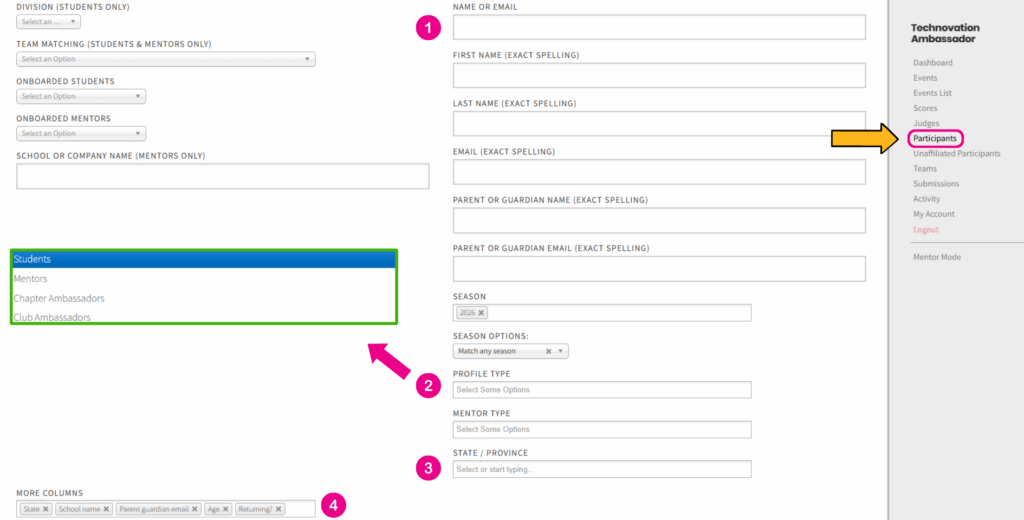
Navigate to the Participant tab (via the list on the right):
Find participants by name or email
Filter to see just students or mentors
Search by location (state, city). ✨ Tip: Search by state first, then the city search bar will appear
Add more columns to see more details such as school, parent email, consent status, etc.
Teams Search
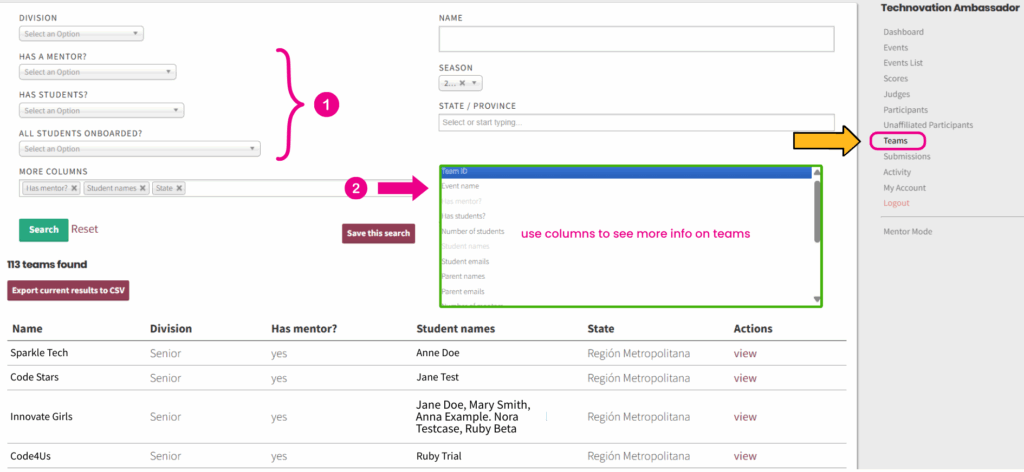
The Team Search tool makes it simple to find and review teams. Navigate to the Teams tab (via the list on the right). In addition to searching for teams by name, division, and location, you can:
Check if teams have students, a mentor assigned, and if all the students are onboarded.
Add more columns to see extra details, like student names and mentor status.
Submissions Search
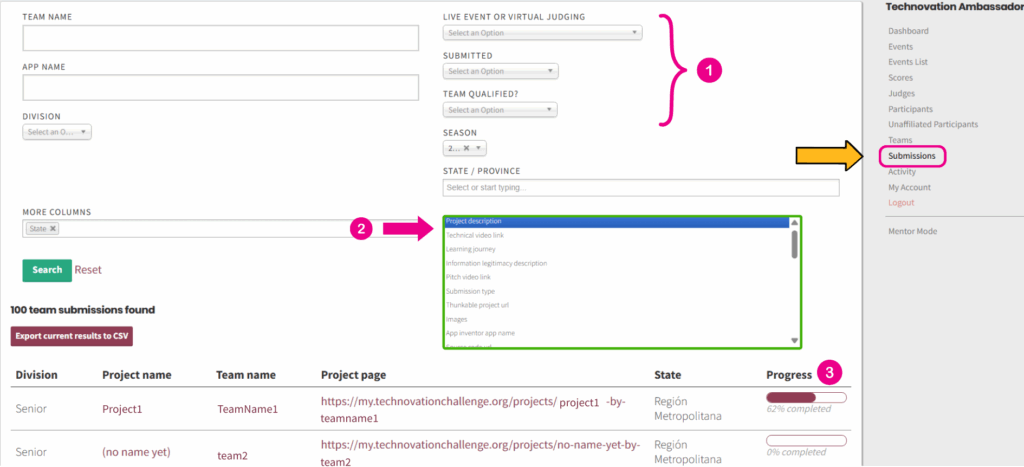
The Submissions Search tool helps you follow project progress across teams. Navigate to the Submissions tab (via the list on the right). In addition to searching by team name, app name, division and location, you can:
Filter submissions by live event or virtual judging, submission status, and team qualification.
Add more columns to view extra details such video links, business plan links etc.
Check the progress bar to track your students’ projects as they complete them throughout the season!
Adding Participants to Your Chapter
From the Chapter Dashboard, you can easily add students and mentors to your Chapter.
📌 NOTE: Only add students after confirming they want to join your Chapter. If you haven’t contacted them yet, reach out first.
Navigate to the Unaffiliated tab (via the list on the right) and then:
Search for a Participant (by name, email or State/Province)
Select the appropriate Profile Type from the dropdown (student, mentor)
Click on "Add to Your Chapter" Action for the intended Participant
Adding Participants to Teams
From the Chapter Dashboard, you can easily add students and mentors to existing teams.
📌 NOTE: Only teams with at least one student will appear in your dashboard. If a mentor creates a team, a student must join before it shows up.
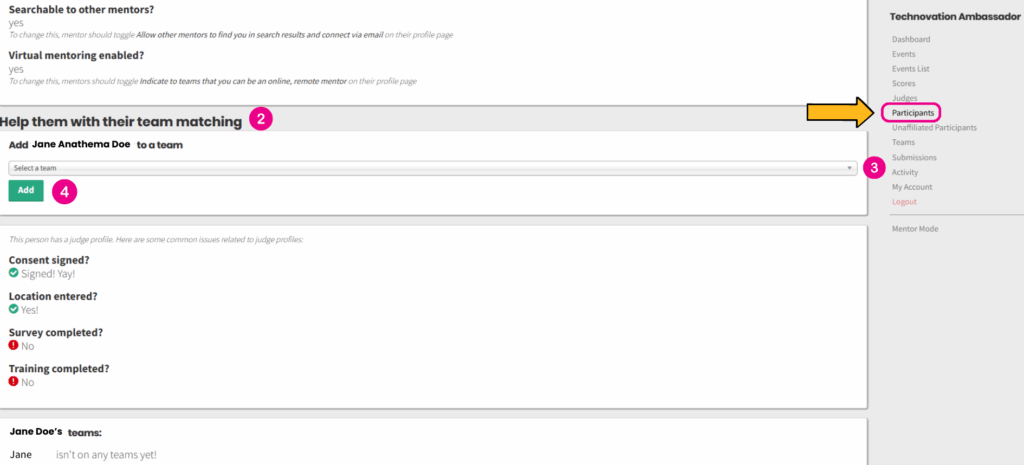
Navigate to the Participant tab (via the list on the right) and then:
Click to "View" a Participants Profile
Scroll down to the "Help them with their team matching" Section
Select the appropriate team from the dropdown
Click the "Add" button
Once you click “View” on a participant’s profile, you can then proceed to add them to a team.
STUDENT ACCOUNT VIEW
Parental Consent
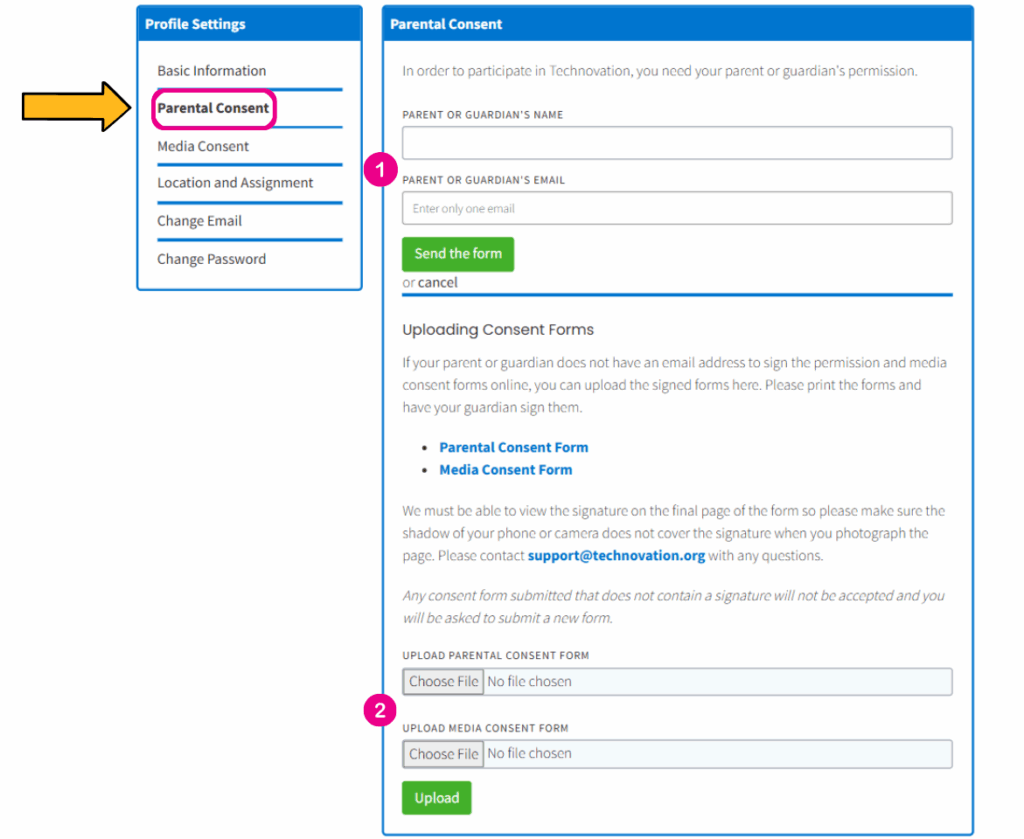
Parental consent is sent to a parent’s email when a student registers on the platform. Parents/guardians need to provide permission to participate in the program as well as media consent by filling an online form.
Navigate to the Parental Consent tab on the student dashboard:
Enter the Parent/Guardian's Name and Email
Click "Send the Form" and wait for the Parent/Guardian to receive the email.
If a parent/guardian does not have an email address or prefers a paper form, students can also upload a picture of a signed paper consent form to their account.
📌 NOTE: Ask the Parent/Guardian to check their email inbox and spam folder.
How Students Create & Join Teams
Students can join or create teams on the platform in different ways.
📌 NOTE: Students will only see their dashboard (and be able to create or join a team) once their parent or guardian has signed the consent form.
Creating a Team
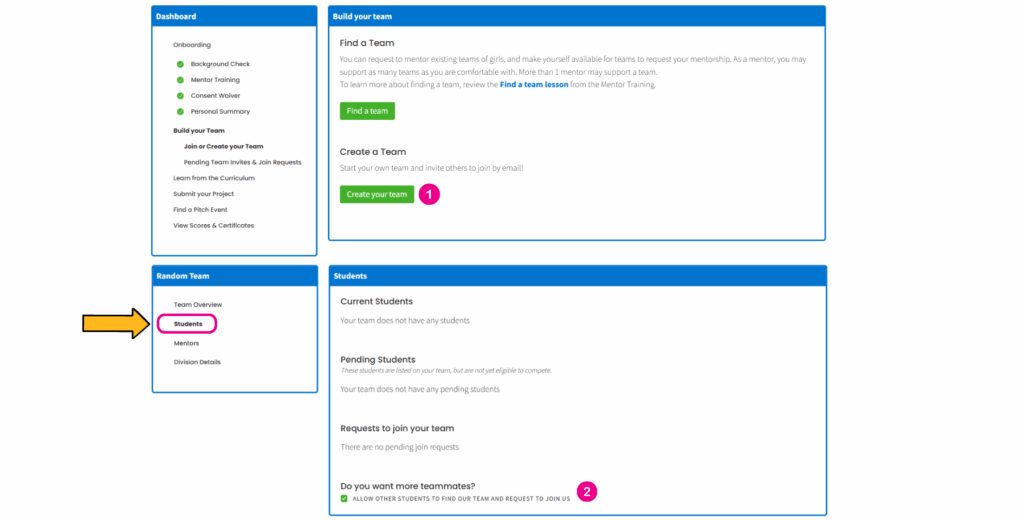
Navigate to the Create your Team tab and do the following:
Enter a Team Name
Click "Create this team"
Inviting a Student to a Team
Navigate to the My Team tab and do the following:
In the "Student's Section" Enter the participant's email adress. Only enter one email address at a time
Click "Send Email Invitation"
Make sure you check the box to allow other students to find and request to join your team.
Joining a Team
📌 NOTE: Teams created by mentors will only be seen by students if the mentor checked the box that makes the team visible to other students.
Navigate to the Find a Team tab and do the following:
Search for teams using the different search options (location, name, division)
Once you find a team, click on "More Details"
Click on "Send Request" to Ask to Join the Team
MENTOR ACCOUNT VIEW
How Mentors Manage Teams
Mentors can also create and manage teams in the following ways:
Creating a Team
Navigate to the My Teams tab click on the link to create or join a team, then proceed as follows:
On the team building dashboard, click on "Create your Team"
Upon entering a Team Name, you can navigate to the "Students" tab to check the visibility of the team
📌 NOTE: When creating a team, check the box that makes the team visible to students. When all students have joined the team, you can uncheck the box.
Joining a Team
Navigate to the My Teams tab click on the link to create or join a team, then proceed as follows:
Search for teams using the different search options (location, name, division)
Once you find a team, click on "More Details"
Click on "Send Request" to Ask to Join the Team