Add Your Heading Text Here
Cal.com an open source scheduling platform that enables you to take bookings on your own terms.
Coaches set their availability, connect their favourite calendar and video conferencing platforms, and share their link.
Setting Up Cal.com
Accept the email invitation
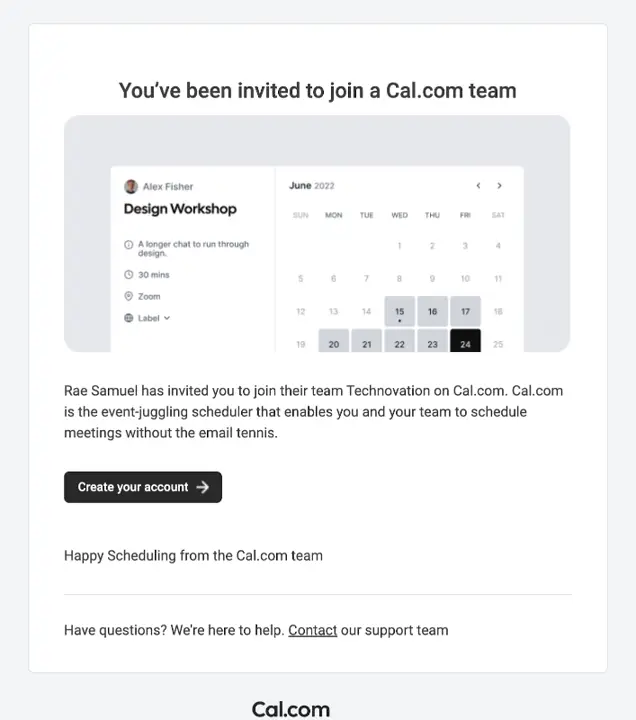
You will receive an invitation to join the Cal.com team
Select the option to ‘Create your account’
- The email will be sent from hello@cal.com
- Ensure you check your Spam folder
Add the email above to your whitelist
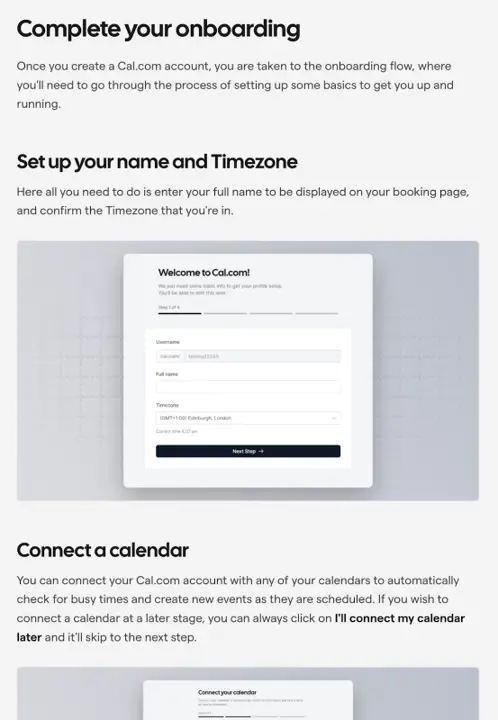
Create an Account
Following the instructions on screen to complete account setup
There is also documentation on the account setup process from cal.com
- Priorities to accomplish in setup are
Setting up your availability (video) - Connect your calendar
NOTE: you can connect multiple calendars (more on connecting calendars)
Connect your calendar
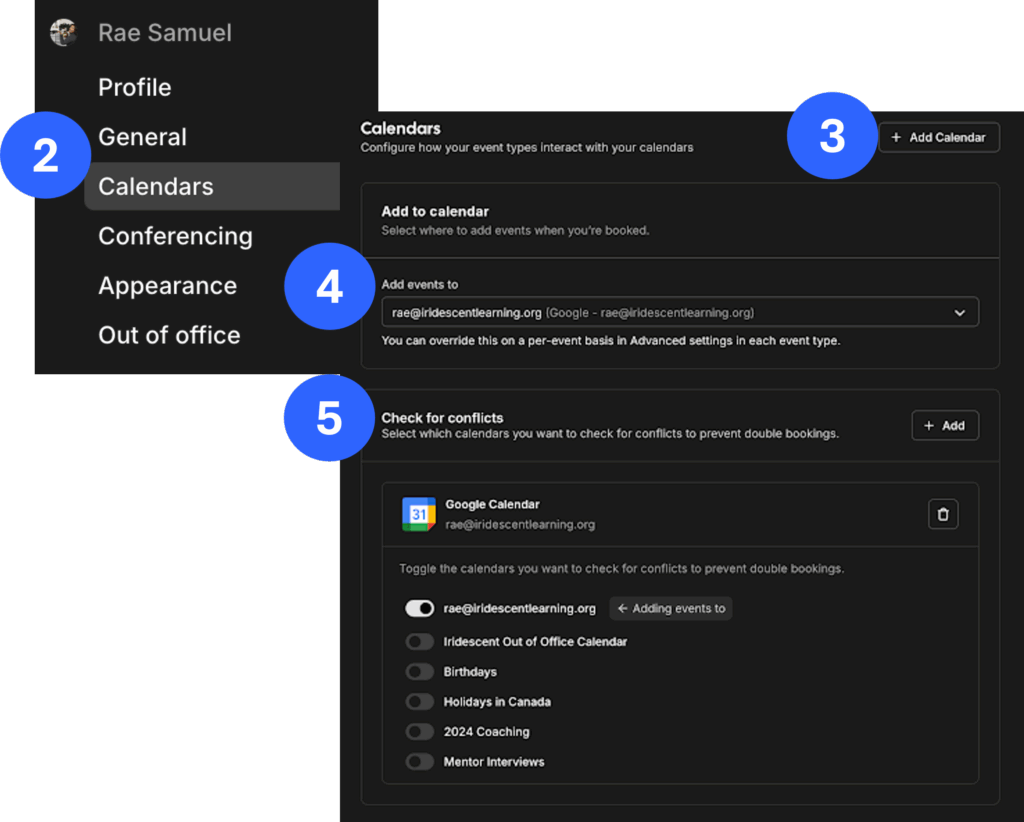
- Click on your name in the top left and select My Profile
strong
- Select Calendars from the left sidebar
- Add any accounts with calendars, select Add Calendar in the top right
- You can have cal.com check as many calendars as you’d like
- Select them under Check for conflicts
- It can add to a specific calendar
- Select the calendar under Add events to
Video Conferencing Tools
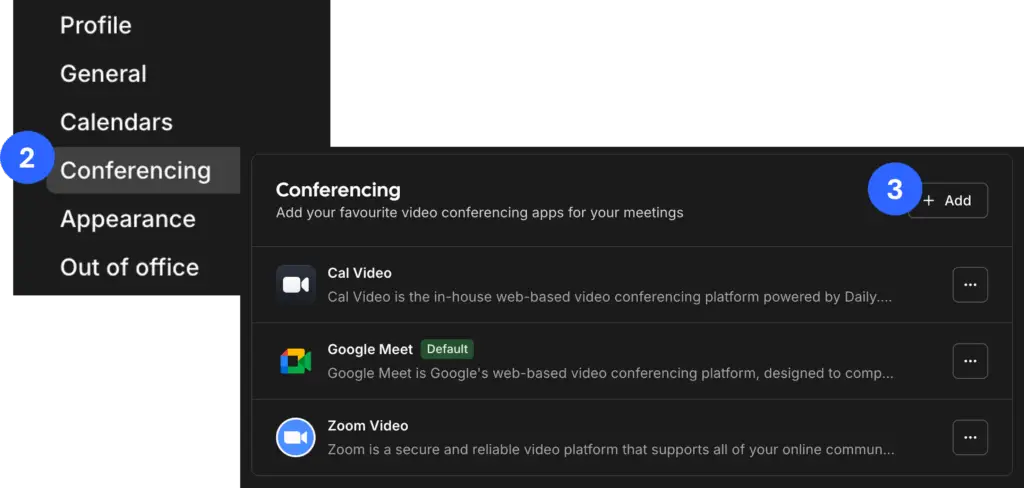
- Click on your name in the top left and select My Profile
- Select Conferencing from the left sidebar
- Add any accounts for video conferencing that you would like to use
Update your Availability
- By default, Cal.com will show all availability from your connected calendar into account. This is what teams will see when searching for sessions
- Setting your availability for coaching ensures that all of your available time is not available to be booked by someone else
Tip: set aside weekly hours that you want to block for Coaching in your personal calendar and adjust your availability on cal.com to reflect that
Booking Restrictions
The Technovation team has put some rules into place around booking, so coaches are not overbooked and have time to prepare between sessions.
- 15 minute breaks between sessions
- Bookings need to be made by the team at least 72 hours in advance, to allow sufficient time for coaches to prepare
- Teams can book with less than 48 hours notice, but you as a Coach will have to approve these sessions
- You’ll get an email with the Subject Line “Awaiting Approval…”
I still have a question
You can always reach out to Technovation’s Volunteer Engagement Team on Slack or at volunteers@technovation.org.